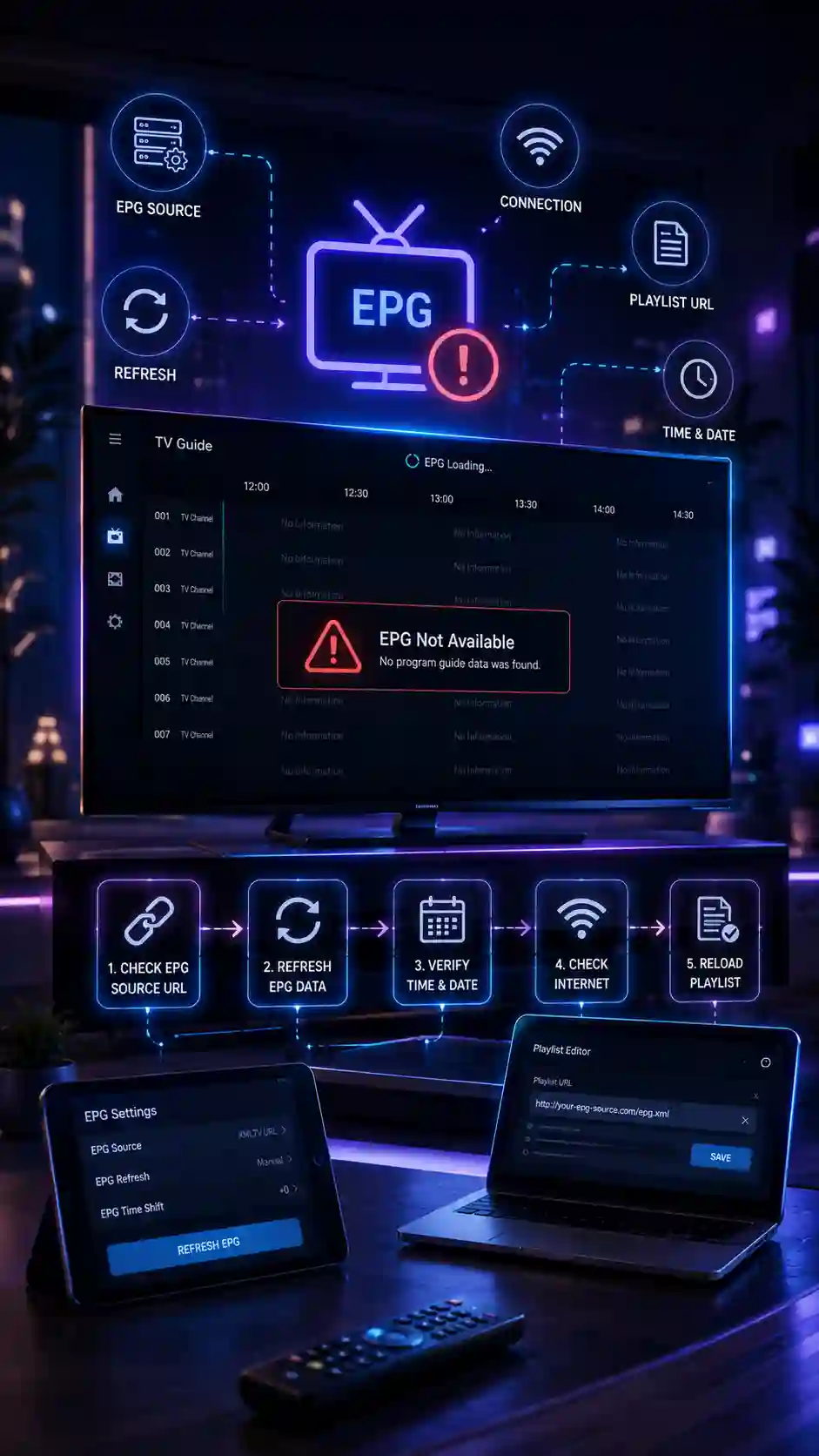
The Importance of a Working EPG
The Electronic Program Guide (EPG) is the backbone of a great IPTV experience. It provides the on-screen TV schedule, channel logos, and the ability to set recordings or use catch-up TV. When your EPG is missing, broken, or showing the wrong programs, navigating your 25,000+ live channels becomes a massive headache.
If your TV guide isn't loading on your Premium IPTV Services subscription, don't panic. This comprehensive troubleshooting guide will walk you through the exact steps to fix missing or broken EPG data on apps like Tivimate, IPTV Smarters, and native Smart TV apps.
Why Your EPG Might Not Be Loading
Before we fix the issue, it helps to understand why it happens. The most common culprits for a broken EPG include:
- Incorrect EPG URL: You may have pasted the M3U URL into the EPG field by mistake.
- Timezone Mismatches: Your device's internal clock or timezone settings are conflicting with the server data.
- App Cache Corruption: The app is holding onto old, corrupted guide data and refusing to download the new XMLTV file.
- Unmapped Channels: The EPG data is downloaded, but the app doesn't know which channel ID matches which stream.
Step 1: Verify You Are Using the Correct XMLTV URL
The most common mistake beginners make is confusing the M3U playlist URL with the EPG URL. They are two completely different links.
- Check the welcome email from Premium IPTV Services.
- Locate the field labeled 'EPG URL' or 'XMLTV URL'.
- Copy this exact link and paste it into the EPG settings of your IPTV app. Do not use your M3U link or your Xtream Codes server URL.
Step 2: Clear the App Cache and Force Restart
If you have the correct URL but the guide is still blank or stuck on 'Loading', your app's cache is likely corrupted.
- On Firestick/Android TV: Go to Settings > Applications > Manage Installed Applications > [Your IPTV App] > Clear Cache (Do not clear data unless you want to re-enter your login). Then, force close the app and reopen it.
- On Smart TV (Smart IPTV/Flix IPTV): Unplug the TV from the wall for 60 seconds to perform a hard power cycle. This clears the temporary memory.
After restarting, give the app 10 to 15 minutes. EPG files for 150,000+ VOD and live channels are massive and take time to download and parse in the background.
Step 3: Manually Map Channels to the EPG Data
Sometimes the EPG downloads successfully, but your channels show up as 'No Information'. This means the channel names in your playlist don't perfectly match the channel IDs in the EPG file.
In apps like Tivimate or IPTV Smarters, you can go to the EPG settings and select 'Map Channels' or 'EPG Shift/Match'. This allows you to manually link 'Sky Sports Main Event HD' in your playlist to 'Sky Sports Main Event' in the EPG data. Once mapped, the logos and schedules will appear instantly.
Why Xtream Codes Fixes 90% of EPG Issues Automatically
If you are tired of dealing with manual EPG mapping and broken XMLTV links, there is a much better way. If your IPTV app supports it, switch your login method from M3U to Xtream Codes API.
Because Xtream Codes pulls data directly from the server's database via an API, the EPG, channel logos, and VOD metadata are perfectly synced by the provider. There is no separate EPG URL to paste, and no manual mapping required. To learn more about why this format is superior, read our guide on M3U vs Xtream Codes.
Conclusion
A working EPG is essential for a premium IPTV experience. By verifying your XMLTV URL, clearing your app cache, and ensuring your channels are mapped correctly, you can get your TV guide back on track. For a complete walkthrough on configuring your apps for the best performance, check out our master guide on how to set up IPTV on any device.